Cookie settings

Choose which cookies ATS Mini Controller may use. Necessary ones are always on, because the app cannot work without them. Analytics stays off until you switch it on.

Controller: WebUncle Grzegorz Zając, Katowice, Poland · contact@atsminiradio.com. Your rights and everything we store: Privacy policy (opens in a new tab)

Necessary

Run the app and keep it safe

Always on

Your language, theme and panel layout, your logbook and favourite stations, files for offline use, and Cloudflare’s protection against abuse. They don’t track you, so they need no consent.

Analytics

Help us improve the app

Count visits, show which features get used and where errors happen, so we know what to fix first. Google processes this data for us, and error details go to Cloudflare logs for 3 days. We build no advertising profile.

We remember your choice in this browser: a consent until you change it or clear your browser data, a refusal for 6 months, then we ask again. When you allow something, we also keep a record of that choice, without your IP address, as proof of consent. Withdrawing consent does not affect what was processed before.

Skip to content
ATS Mini Controller
Offline
RTL-SDRAntenna

RTL-SDR antennas and filters

Antennas for an RTL-SDR stick beyond the kit dipole: the dipole set, a discone for wideband listening, a 1090 MHz antenna for aircraft, plus an FM broadcast stop filter and an LNA.

Some links on this page are AliExpress affiliate links. If you buy through them we may earn a small commission, at no extra cost to you. It never changes the price you pay, and we only list gear we would actually use with an ATS Mini.

An RTL-SDR stick has a 50-ohm SMA input, unlike the ATS Mini’s high-impedance whip input, so it wants proper antennas fed with coax. One antenna cannot do everything from shortwave to 1.7 GHz well. Pick for what you want to hear, and put the antenna as high and as far from the house wiring as you can: a mediocre antenna outside beats a good one next to a monitor. For shortwave, the longwire, loops and active antennas on the antennas page also suit a stick (look for the RTL-SDR tag), and the HF guide explains how the stick reaches HF.

Start with the dipole kit

The RTL-SDR Blog dipole kit is a set of telescopic and short elements on a small mount, with a coax lead and a suction-cup holder. Extend each arm to about a quarter wavelength (in centimetres, roughly 7100 divided by the frequency in MHz) and it covers FM broadcast, airband, ham VHF and UHF, and PMR. Opened to a V and laid flat, it is a decent antenna for weather satellites around 137 MHz. It comes with the V3 kit; buy it on its own if you got the dongle alone.

RTL-SDR Blog multipurpose dipole antenna kit

  • RTL-SDR

The official RTL-SDR Blog dipole set: telescopic and short elements, a mount and a coax lead. Adjustable for FM, airband, ham VHF/UHF and, as a V-dipole, weather satellites.

Check price on AliExpress
View on AliExpress

A discone for everything above 25 MHz

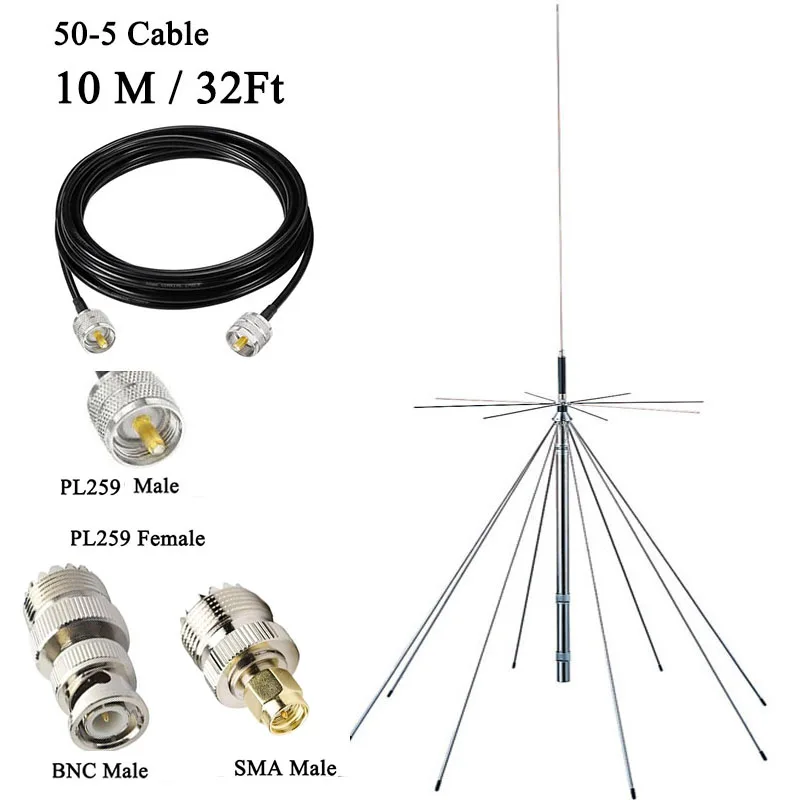
A discone hears a very wide range without retuning, which is what you want for a scanner or for browsing many bands. It is not better than a dipole on any one frequency, but it is never far off. Mount it outdoors and high, and check the connector in the listing: discones usually end in an N or SO-239 socket, so you need a coax lead and an adapter to SMA male.

SignalPlus D3000 discone antenna

  • RTL-SDR

A wideband discone listed for reception from 25 to 3000 MHz, sold with or without a cable. Check the connector on the listing and plan an adapter to SMA male for the stick.

$112.24 was $135.30
View on AliExpress

A 1090 MHz antenna for aircraft

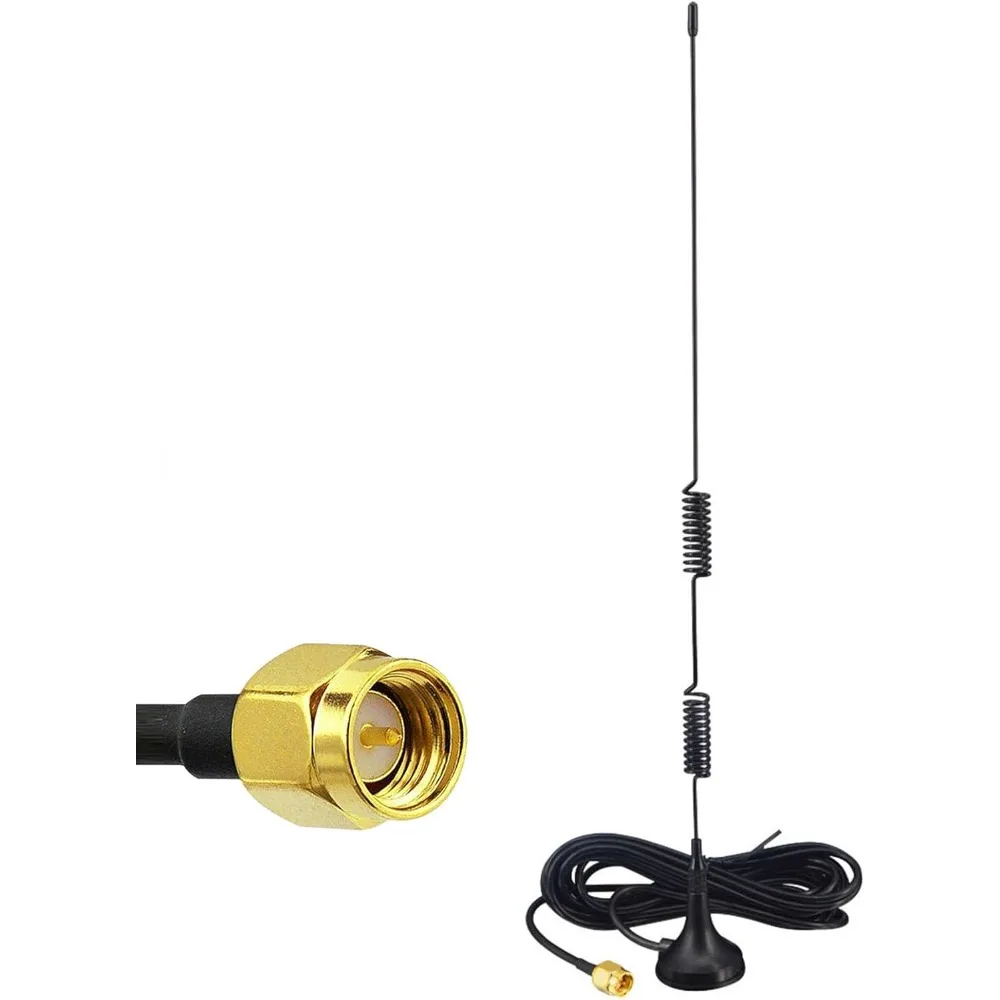
ADS-B replies from aircraft sit on 1090 MHz, where the kit dipole needs arms only about 7 cm long. A small antenna made for 1090 MHz on a magnetic base, by a window or outside with a clear view of the sky, adds a lot of range to the ADS-B decoder.

1090 MHz ADS-B antenna (SMA male, magnetic base)

  • RTL-SDR

A small antenna tuned for 1090 MHz with an SMA plug and a magnetic base, for the ADS-B aircraft decoder.

$6.50 was $7.01
View on AliExpress

Filters and an LNA

Strong FM broadcast stations can overload the stick and smear across the spectrum while you listen somewhere else; the app shows this as an Overload badge. A broadcast-band stop filter between the antenna and the stick takes 88–108 MHz out and leaves the rest. The V4 has notch filters built in, so it needs one less often than a V3.

An LNA (low-noise amplifier) helps only when a long coax run loses signal before it reaches the stick. Put it at the antenna end and power it with the stick’s 4.5 V bias-T, which the app switches on under Source after asking. Near strong transmitters an LNA makes overload worse, so try without one first.

RTL-SDR Blog FM broadcast stop filter (88–108 MHz)

  • RTL-SDR

Removes the FM broadcast band in front of the stick so strong FM stations stop overloading it. Fit it between the antenna lead and the stick.

Check price on AliExpress
View on AliExpress

RTL-SDR Blog wideband LNA (V2)

  • RTL-SDR

A wideband low-noise amplifier powered over the coax by a bias-T, such as the one in the RTL-SDR Blog sticks. Worth it at the end of a long coax run, not next to a strong transmitter.
Check price on AliExpress
View on AliExpress

Never switch the bias-T on with an antenna that shorts DC, such as a passive loop, a folded dipole or a DC-grounded vertical: it can damage the stick.

More

Device

Explore

Settings

Theme

Welcome to ATS Mini Controller

This web app connects to your ATS Mini radio over USB or Bluetooth LE and lets you control it directly from a computer or phone. It adds remote tuning, memory slot management, screenshot capture, audio streaming, spectrum scanning, theme editing and other features on top of the device's built-in firmware.

Firmware 2.34+: pick a connection method

Starting with firmware 2.34 the radio accepts remote control over USB or Bluetooth LE. Pick by what matters more for you: fast screenshots (USB) or clean audio from the radio’s 3.5 mm output (Bluetooth) — the two transports trade off in opposite directions.

  • USB Serial

    Settings USB Port change Off to Ad hoc

    Works in any Chromium-based browser. Requires a data-capable USB-C cable (opens in a new tab).

    Best for screenshots and theme work. Transfers complete in a second or two. Audio capture is noisy while the cable is connected — the radio lacks the filtering needed to isolate its 3.5 mm output from the USB power rail, so hum and switching noise bleed into the audio path.

  • Bluetooth LE

    Settings Bluetooth set mode to Ad hoc

    Chrome / Edge / Opera on desktop or Android. BLE is experimental in firmware 2.34.

    Best for clean audio. Bluetooth LE carries the remote control only, never sound: the audio still travels by cable from the radio’s 3.5 mm output to your computer. With no USB cable attached the radio runs on its battery, so that output stays free of the USB power-rail noise that bleeds through on a wired connection. Screenshots are much slower (~30 s) because of the firmware's BLE throughput cap.

More than one firmware

Besides the official firmware, the app carries profiles for the Monster fork and for H. J. Berndt's firmware. It works out which one your radio runs from the replies it gets, so there is nothing to pick. When nothing matches, it says so instead of guessing.

  • Berndt firmware is never assumed. It reuses some of the official firmware's keys and what they do there is not established, so the app asks you before switching to it.
  • Missing controls are deliberate. Whatever a firmware cannot do is left off the page rather than greyed out, and on Berndt firmware, commands go out one at a time, a few seconds apart.
How the app handles other firmwares (opens in a new tab)

Keyboard shortcuts

Single keys control the radio on the Controller page, except while you type in a field.

←→
Tune one step
↑↓
Volume up / down
Enter
OK
BN
Next / previous band
MV
Next / previous mode
SA
Next / previous step
WQ
Next / previous bandwidth
GF
AGC up / down
LK
Backlight up / down
IU
Calibration up / down
OP
Sleep on / off
T
Toggle status log
C
Screenshot
H
Log reception
D
Cockpit view
⌘K
Search pages & stations